In the first book, we used coordinates to draw shapes and work with textures. Now we will slow down a little and look at those coordinates themselves.
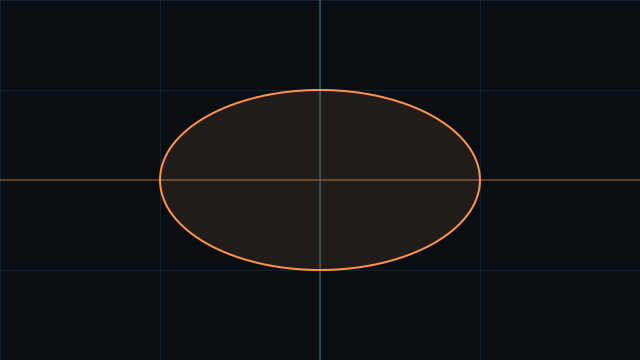
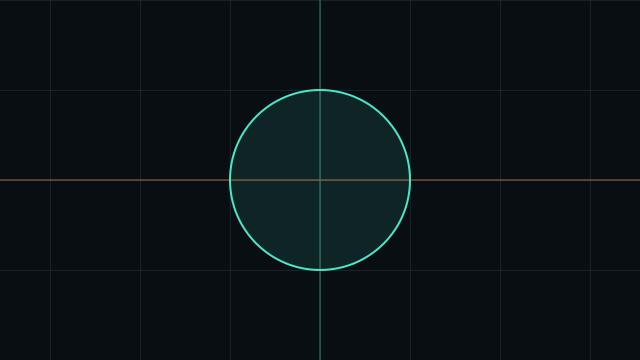
A circle is a good place to start. It can look correct in a square preview and turn into an ellipse on a wide screen. The distance function has not changed. The numbers we give it have.
By the end of this chapter, you will know where those numbers come from, what one unit means, and how to keep that unit the same in both directions.
Start with an address
A fragment shader calculates a color for a fragment. For our full-screen examples, we can think of that as working on one pixel at a time.
GLSL gives us its position through gl_FragCoord. We only need the first two components:
vec2 pixel = gl_FragCoord.xy;pixel.x tells us how far we are from the left edge. pixel.y tells us how far we are from the bottom. Both are measured in pixels of the drawing buffer: the image WebGL renders into.
Imagine a buffer that is 800 pixels wide and 400 pixels high. Its geometric center is (400, 200). Moving 100 pixels right adds 100 to x. Moving 100 pixels up adds 100 to y.
There is nothing wrong with pixel coordinates. A distance of 100 has the same scale on both axes. But a shape with a fixed radius of 100 pixels does not grow when the buffer gets larger. Sometimes that is what we want. Sometimes we want a shape to use a fixed part of the available space.
Put the canvas in 0–1
Let’s divide the position by the buffer size:
vec2 uv = gl_FragCoord.xy / uResolution;uResolution is a vec2 uniform containing the actual buffer width and height. The page passes it to the shader. Every fragment in this draw receives the same resolution; its own gl_FragCoord is different. Division between two vectors happens component by component:
uv.x = pixel.x / uResolution.x;
uv.y = pixel.y / uResolution.y;
The left edge now has x = 0, the right edge has x = 1, and the center has x = 0.5. The same is true for the vertical direction. Pixel centers lie just inside these edge values.
We usually call this pair UV coordinates. Here, u means the horizontal component and v means the vertical component. They describe a relative position. They do not have to come from a texture.
We can see both values by using them as color channels. This is a complete fragment shader for our WebGL 2 setup:
#version 300 es
precision highp float;

uniform vec2 uResolution;
out vec4 fragColor;

void main() {
    vec2 uv = gl_FragCoord.xy / uResolution;
    fragColor = vec4(uv.x, uv.y, 0.0, 1.0);
}
Red increases to the right. Green increases upward. Near the bottom-left corner, both values are small, so the image is nearly black. Near the top-right corner, red and green are both close to 1, so we get yellow. Blue stays at 0; alpha stays at 1.
Select UV colors in the playground to see this map. The colors encode UV in every coordinate mode, so we always have the same reference.
Move zero to the center
For a centered shape, it is useful to make the middle of the canvas (0, 0). We can subtract 0.5 from both components. Multiplying by 2 then changes the edge range from [-0.5, 0.5] to [-1, 1]:
vec2 p = (uv - 0.5) * 2.0;
// Equivalent: vec2 p = 2.0 * uv - 1.0;
Both forms mean the same thing. In the rest of this chapter, p is the coordinate we use to draw the shape.
Now x is negative on the left and positive on the right. y is negative below the center and positive above it. We have moved the origin: the position called zero.
This is coordinate normalization: choosing a useful coordinate range. It is different from normalize(v), which changes a nonzero vector’s length to 1. We will study that operation in chapter 04.
Why is the circle stretched?
Let’s use our centered coordinates to draw a circle:
vec2 uv = gl_FragCoord.xy / uResolution;
vec2 p = 2.0 * uv - 1.0;

float distanceToCenter = length(p);
float circle = 1.0 - smoothstep(0.49, 0.51, distanceToCenter);
length(p) measures the distance from zero. We will look at the calculation in chapter 03. For now, use it as our distance tool. The last line fills the area inside radius 0.5 and adds a small soft edge between 0.49 and 0.51.
On a square canvas, this looks fine. On an 800 × 400 canvas, it becomes twice as wide as it is tall. Why?
Our horizontal range of 2 units covers 800 pixels. One X unit is therefore 400 pixels. The vertical range also has 2 units, but covers only 400 pixels. One Y unit is 200 pixels.
Radius 0.5 along X: 0.5 × 400 = 200 pixels
Radius 0.5 along Y: 0.5 × 200 = 100 pixels
The formula draws a circle in the coordinates we gave it. Those coordinates use different scales. Both axes need the same ruler.
Use the same unit on both axes
Go back to pixel coordinates. First, subtract half the resolution to put zero at the center:
vec2 centeredPixels = gl_FragCoord.xy - 0.5 * uResolution;Then divide both components by the height. Multiply by 2 so the vertical edges become -1 and 1:
vec2 p = 2.0 * centeredPixels / uResolution.y;Or put it into one line:
vec2 p = (2.0 * gl_FragCoord.xy - uResolution) / uResolution.y;Now a one-pixel step changes either coordinate by 2.0 / uResolution.y. The scale is the same in both directions. That is the important part.
With an 800 × 400 buffer, one unit is 200 pixels on either axis. A radius of 0.5 is 100 pixels in both directions. Our circle is round again.
The vertical edge range stays [-1, 1]. The horizontal edge range is [-aspect, aspect], where aspect = width / height. For 800 × 400, that is [-2, 2]. We accept more horizontal space instead of stretching one unit.
You can also fix centered UV by multiplying its X component by the aspect ratio:
vec2 p = 2.0 * uv - 1.0;
p.x *= uResolution.x / uResolution.y;
Both versions give the same result. Choose one. Applying both corrections would stretch the coordinates again.
Height is a convention, not a special mathematical rule. Dividing both components by width would also keep equal units, but fix the horizontal range instead. We will use height throughout these chapters. The introduction used a wider overview of the scene; the idea of equal units was the same.
| Position | Pixels | UV | Equal units |
|---|---|---|---|
| Bottom-left edge | (0, 0) | (0, 0) | (-2, -1) |
| Center | (400, 200) | (0.5, 0.5) | (0, 0) |
| Upper-right quarter point | (600, 300) | (0.75, 0.75) | (1, 0.5) |
| Top-right edge | (800, 400) | (1, 1) | (2, 1) |